Introduction
Embarking on a journey to master Linux from scratch can seem daunting, but with a structured approach, anyone can progress from a novice to a competent server administrator. This guide is designed for the self-learner, offering a clear path to build your tech skills incrementally. From understanding basic commands to deploying your own server, each section provides practical steps and resources. Prepare to transition from a Linux beginner to an adept server operator armed with the knowledge to customize and control a powerful open-source operating system.
Building the Foundation
Days 1-3: Getting Started with Linux
During the initial days of your Linux journey, the focus will be on familiarizing yourself with the operating system’s basics. Start by choosing a beginner-friendly distribution like Ubuntu or Fedora and install it either on a Virtual Machine (VM) or a secondary computer. This gives you ample space to explore without risk.
By the end of the third day, aim to:
- Understand the Linux file system hierarchy
- Navigate the desktop environment and terminal
- Customize your command prompt for ease
- Create a directory and a simple text file
Resources such as free online tutorials, YouTube videos, and community forums offer terrific support. Remember, the key is to practice consistently and not rush through these foundational days as they lay the groundwork for the advanced skills ahead.
Essential Commands and Navigation
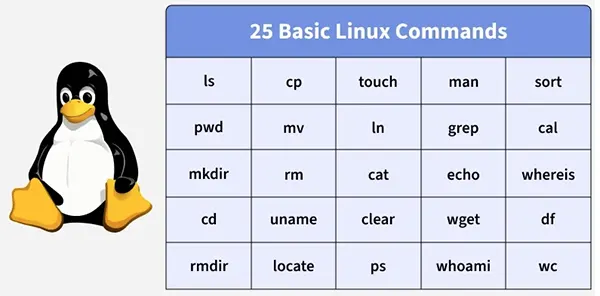
Mastering Linux’s essential commands and navigation techniques is vital early in your learning path. Begin by familiarizing yourself with commands like ls, cd, pwd, cp, mv, rm, and mkdir, which enable you to list files, change directories, print working directories, copy, move, remove files, and create directories, respectively. These commands serve as the building blocks for handling Linux environments efficiently.
Spend time understanding how to:
- Use wildcard characters to operate on multiple files at once
- Redirect input and output using pipes (|) and redirection symbols (> and <)
- Employ man and –help to access the built-in manual for any command for deeper insights
Consider keeping a command cheat sheet handy as a quick reference tool while practicing daily tasks. As you grow more comfortable, challenge yourself with exercises that mimic real-world scenarios, such as scripting a daily backup of critical files.
Taking advantage of the Linux terminal’s automation capabilities can drastically improve productivity, making this phase an exciting leap forward in your skill set.
Before writing your first Linux command, you need somewhere to practice. A virtual private server (VPS) gives you a real server environment to experiment on without risking your local machine, and plans start cheap enough for any self-learner’s budget. ssons, but nothing accelerates Linux learning faster than managing a live server. VPS providers like VPSserver.com let you spin up a Linux instance in minutes, giving you a real-world environment that mirrors what you’ll encounter in any professional setting.
Intermediate Skills Development
Days 13-15: Mastering Shell Scripting Basics
In Days 13 to 15, you’ll dive into the world of shell scripting – arguably one of the most powerful aspects of Linux. Shell scripting enables automation of repetitive tasks, saving time and reducing errors in daily operations.
Start by learning how to:
- Create and execute simple scripts
- Use variables and operators to store and manipulate data
- Implement conditional statements (if, else, elif) to make decisions within scripts
Core skills also include mastering loop constructs such as for, while, and until—essential for iterating over files and datasets. Practice by writing a script that backs up directories, cleans up disk space, or automates software updates.
By practicing these skills:
- You’ll automate mundane tasks
- Minimize human error
- Increase system performance
Look for community-driven script repositories on platforms like GitHub to gain insight from real-world examples. Join forums and engage in discussions to clarify doubts and learn variations in scripting practices.
These three days set a strong foundation in scripting that will be pivotal as you advance to more complex scripting and automation challenges.
Managing Files and Directories
Managing files and directories efficiently is a cornerstone of Linux proficiency. You’ll need to navigate, organize, and manipulate the filesystem with precision, which will be essential in both desktop and server environments.
Key techniques to master include:
- Using mv, cp, and rm for moving, copying, and deleting files and directories
- Understanding file permissions with chmod and ownership with chown
- Using tar, gzip, and unzip for compressing and decompressing files
You should also become proficient with find and grep commands to search for files and specific text within files, a crucial skill for troubleshooting and system management. Learning to use symbolic links (ln -s) can also streamline file management, allowing you to reference files without duplication.
Adopt a practice of developing scripts to automate routine file management tasks—this not only saves time but ensures consistency across operations. Reading others’ scripts can provide valuable insights and alternative approaches you might not have considered.
File management in Linux, when done correctly, enhances productivity significantly.
Package Management Essentials
Package management is a critical aspect of maintaining a Linux system, ensuring your applications and system components are up-to-date and running smoothly. Familiarizing yourself with package managers is essential since they allow you to install, update, and remove software effortlessly.
Begin by exploring:
- apt for Debian-based distributions or yum/dnf for Red Hat-based systems
- Installing, updating, and removing packages using simple command-line instructions
- Handling repositories to access a broader range of applications
Ensure you understand how to:
- Resolve dependency issues, which are common when packages conflict or are incomplete
- Use dpkg (Debian) or rpm (Red Hat) for low-level package manipulation, offering more granular control
- Configure and utilize third-party repositories to expand the available software
By the end of this phase, you should be comfortable managing software packages and configurations through the command line, boosting both flexibility and control over your system environment. Stay engaged with release notes to keep abreast of potential changes impacting package management.
Adapting to different package managers depending on the distribution strengthens your versatility as a Linux user and prepares you for varied environments.
Advanced Techniques and Automation
Days 25-27: System Security Practices
Security is paramount in any Linux system, especially when transitioning to server management. From Days 25 to 27, your focus will be on instilling solid security practices to safeguard against unauthorized access and vulnerabilities.
Begin by implementing:
- Regular updates for all software and dependencies to patch known vulnerabilities
- Secure Shell (SSH) to encrypt communication between your client and server
- Strong password policies and account lockout policies to prevent unauthorized access
Learn to use tools like iptables or ufw for configuring robust firewall setups, which will help manage inbound and outbound traffic effectively, providing an essential layer of protection.
Additionally:
- Enable security auditing using tools like auditd to monitor file activities and user behaviors
- Understand and configure SELinux or AppArmor for additional security layers, controlling what each application can access and perform
Review current security policies and test your configuration using tools like Lynis for system security auditing. Engaging in regular security drills aids preparedness for potential security incidents.
Implementing these practices protects your system and data and trains you to be vigilant in identifying and responding to potential threats.
Automating Tasks with Cron Jobs
Automating routine tasks using cron jobs is an efficient way to manage time-consuming processes without the need for constant oversight. Cron, a time-based job scheduler in Unix-like operating systems, allows you to execute scripts or commands at specified intervals.
Key steps for mastering cron include:
- Understanding the cron syntax, including the five fields representing minute, hour, day, month, and weekday
- Creating and editing crontab files (crontab -e) to schedule tasks
Tasks you can automate with cron range from system backups and updates to monitoring application performance or clearing temporary files. By scheduling these tasks during low-traffic periods, you maximize system resources and minimize disruptions.
To set up effective cron jobs:
- Use the crontab -l command to list current cron jobs and ensure no conflicts
- Redirect output and error logs to files to review job performance and diagnose issues
It’s crucial to regularly review and update your cron jobs, especially when software or system configurations change. Practicing setting up cron for different tasks will enhance your problem-solving skills and improve operational efficiency.
Utilizing cron jobs not only saves time but dramatically reduces human error, allowing for a more reliable and maintainable server environment.
Diagnosing Hardware and Performance Issues
Diagnosing hardware and performance issues is crucial for maintaining system reliability and achieving optimal performance. Gaining competence in this area involves a mix of understanding hardware components and using diagnostic tools effectively.
Start by familiarizing yourself with:
- Common hardware components such as CPUs, RAM, disks, and network interfaces
- Indicators of malfunction, like unusual noises, overheating, or failure to boot
In the Linux environment, several tools will aid in performance diagnostics:
- Utilize top or htop to monitor real-time system performance, such as CPU and memory usage
- Use iostat, vmstat, and netstat to gather detailed statistics for disk, system, and network I/O respectively
Identifying and resolving bottlenecks:
- Check disk usage with df and disk health with smartctl
- Analyze logs using dmesg and /var/log/syslog for error patterns or failures
- Employ free to evaluate memory usage and swap status
Regular system audits can catch issues before they become critical, ensuring your system operates at its best. Test different configurations and compare performance metrics to fine-tune and troubleshoot effectively.
By consistently applying these diagnostics techniques, you’ll minimize downtime and ensure that your Linux systems are running smoothly
Transition from Learning to Deployment
Why Build a Linux Server?
Building a Linux server offers remarkable flexibility, cost-effectiveness, and control over your computing environment. By opting for Linux, you leverage an open-source platform that is highly customizable and well-supported by a vibrant community. Its stability and robust performance make it ideal for various server roles, from web hosting to file sharing.
Reasons to consider building a Linux server include:
- Cost savings due to zero licensing fees
- Enhanced security through community-driven updates and features
- Broad compatibility with numerous applications and services
Linux servers are known for their reliability and uptime, often surpassing other operating systems in enterprise environments. This makes them an excellent choice for critical business operations or any application that demands high availability.
Moreover, building your server helps you develop valuable skills in system administration, networking, and security—skills highly sought after in the tech industry.
Choosing the Right Hardware and VM Setup
Selecting the right hardware and virtual machine (VM) setup is fundamental to optimizing your Linux server’s performance and reliability. Matching your hardware to the intended server role ensures you get the best value and efficiency from your investment.
Consider the following when choosing hardware:
- CPU and RAM: Opt for multi-core processors and sufficient RAM for tasks like databases or web hosting.
- Storage: Solid-State Drives (SSDs) enhance read/write speeds, while Hard Disk Drives (HDDs) provide more capacity at lower costs.
- Network Interfaces: Ensure you have adequate bandwidth for network-intensive applications.
For virtualization, choose a reputable hypervisor like VMware, VirtualBox, or KVM that aligns with your needs and expertise. Virtual environments allow you to test configurations, scale resources, and restore systems effortlessly with snapshots and backups.
To optimize VM performance:
- Allocate resources wisely, ensuring enough CPU and RAM for both the host and guest systems.
- Configure virtual disks to use pre-allocated sizes to avoid fragmentation and performance degradation.
- Leverage hardware-assisted virtualization settings available in CPU and BIOS settings for improved efficiency.
By carefully selecting hardware and tailoring your VM setup, you create a robust environment capable of handling diverse tasks effectively, providing a solid foundation for your Linux server ambitions.
Deploying Essential Web Hosting Tools
Deploying essential web hosting tools on your Linux server transforms it into a versatile platform for hosting websites and applications. Open-source solutions offer a powerful yet cost-effective way to manage your web presence directly.
Key tools to deploy include:
- Web Server Software: Apache or Nginx are top choices due to their flexibility and strong community support.
- Database Systems: MySQL or PostgreSQL provide robust and scalable solutions for data management.
- Server-side Scripting: PHP, Perl, or Python can handle dynamic content and interact seamlessly with your database.
Additionally, consider installing:
- FTP/SFTP Services: Enable file transfers to your server with secure options like vsftpd or OpenSSH.
- Control Panels: Tools like cPanel or Webmin facilitate easier management of web hosting services for users less comfortable with command-line operations.
By implementing these tools, you can efficiently handle large amounts of traffic, deliver dynamic web pages, and manage web resources. Optimization techniques, such as configuring caching mechanisms, further enhance performance and load times.
Through a thoughtful selection of web hosting tools, you empower your server to effectively support small personal blogs or robust enterprise applications.
Final Steps to Expertise Final Steps to Expertise
Performance Monitoring Strategies
Implementing effective performance monitoring strategies is essential for maintaining a well-functioning Linux server. It helps in detecting potential bottlenecks, forecasting resource needs, and ensuring applications operate smoothly.
To start, leverage tools such as:
- Monitoring Utilities: top, htop, and nmon provide real-time insights into CPU, memory, and process usage.
- Network Analysis Tools: iftop and nload offer data on network usage patterns, helping you manage bandwidth effectively.
- Logging Tools: Utilize syslog and journalctl for comprehensive logging and event analysis, crucial for spotting anomalies.
Develop a routine that includes:
- Setting up alerts and notifications using monitoring systems like Nagios or Zabbix, which alert you to outages or threshold breaches.
- Using Grafana coupled with Prometheus for rich dashboards that visualize system metrics and trends over time.
- Regularly reviewing logs and reports to assess the health of applications and infrastructure.
Consistently applying these strategies not only boosts your server’s reliability and performance but also supports informed decision-making regarding capacity planning and scaling needs.
Networking and Remote Access Configuration
Configuring networking and remote access is crucial for managing your Linux server efficiently from anywhere. These capabilities enable seamless administration and ensure connectivity for applications and users.
Start by setting up secure networking practices:
- IP Configuration: Use static IP addresses for stability and ease of access, especially for servers hosting critical services.
- Firewalls: Utilize iptables or ufw to define security rules that protect against unauthorized access and control traffic flow.
For remote access, SSH (Secure Shell) is indispensable:
- SSH Setup: Install and configure OpenSSH for encrypted connections, ensuring data integrity and confidentiality.
- SSH Key Authentication: Enhance security by using key-based authentication over passwords, preventing brute force attacks.
Additional recommendations include:
- Implementing VPNs when remote access occurs over unsecured networks, ensuring your data remains protected.
- Configuring dynamic DNS services if a static IP is not an option, allowing consistent remote access even when IP addresses change.
Create a robust remote management protocol with tools like Ansible or SaltStack, which can further automate tasks and maintain configurations across multiple systems.
These strategies safeguard your server’s operations and provide flexibility in accessing and managing server resources effectively.
Understanding Server Logs and Troubleshooting
Understanding server logs and effectively troubleshooting issues are vital skills for maintaining a healthy Linux server. Logs provide detailed records of system activities, errors, and security events, making them indispensable for diagnosing problems.
Start by familiarizing yourself with key log files:
- System Logs: Located in /var/log/syslog, these contain general system event records.
- Authentication Logs: /var/log/auth.log tracks login and authentication events, crucial for security audits.
- Daemon Logs: /var/log/daemon.log holds service-specific logs, providing insights into service health and operations.
To streamline log analysis:
- Use tools like grep, tail, and less to filter and view logs based on specific criteria or keywords quickly.
- Implement log management solutions such as Log rotate to automate log rotation, archiving, and deletion, keeping disk usage in check while retaining necessary information.
Troubleshooting involves:
- Identifying patterns or repeated errors in logs and correlating them with system changes or incidents.
- Utilizing stack traces or error codes provided in logs to research specific issues online, where community or official documentation can offer solutions or workarounds.
Incorporate centralized logging systems like ELK Stack (Elasticsearch, Logstash, Kibana) for comprehensive log aggregation and visualization, greatly enhancing troubleshooting efficiency through structured analysis.
By mastering log analysis and troubleshooting techniques, you’ll not only resolve issues swiftly but also maintain your server’s reliability and performance through proactive measures.